App Store Connect: listing, reviews, and sales
Connecting App Store Connect lets Appwin read your app's App Store data: metadata, reviews, sales.
This is read access in the common case. The permission level you grant is still your choice, and the key has as many rights as the role you assign - hence the recommendation below.
Settings → Projects → your app → Integrations → App Store Connect.
1. Create the API key (.p8)
You need to be Account Holder or Admin to see the Integrations tab.
- 1
Open the App Store Connect API
In App Store Connect: Users and Access → Integrations tab → App Store Connect API.
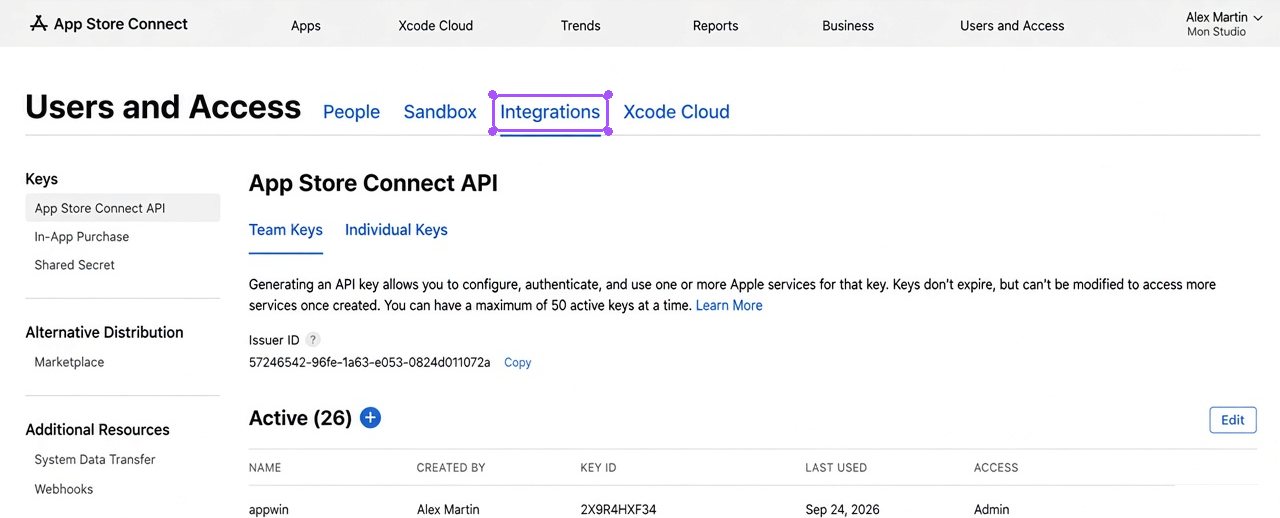
- 2
Create the key
+ button → name it (e.g. "appwin") → pick a role → Generate.
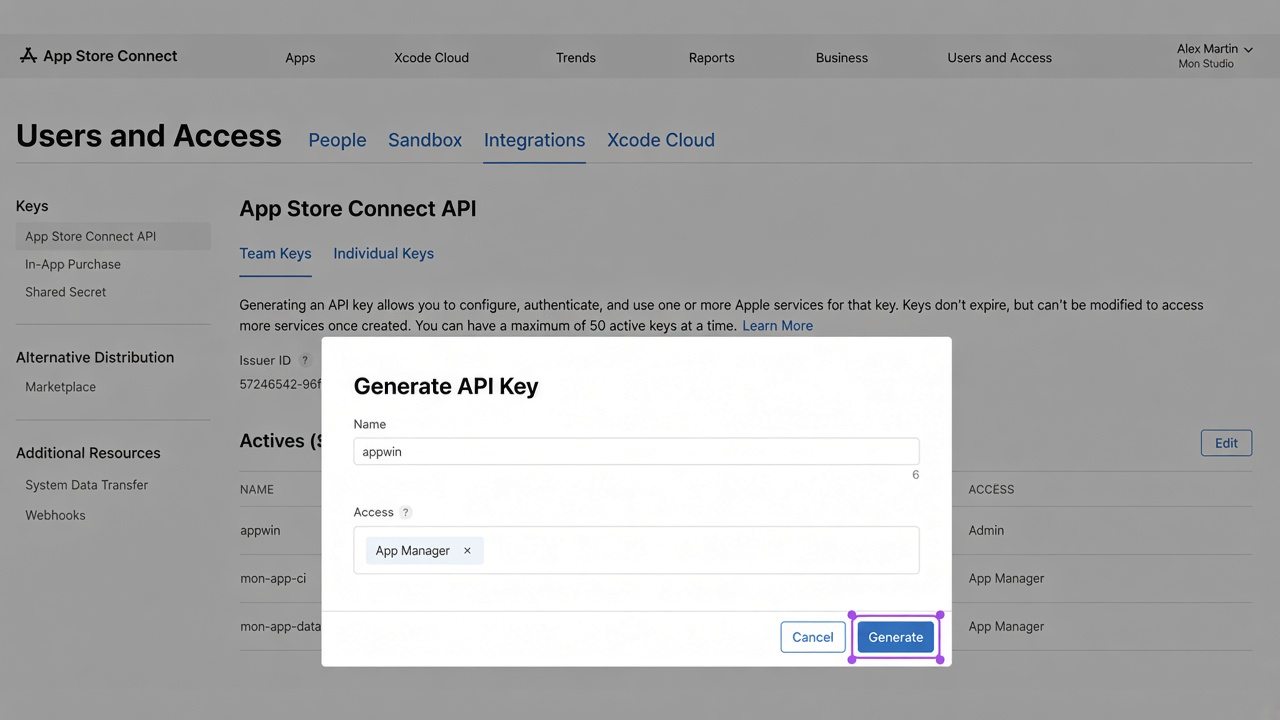
Which role
Role What it allows Recommendation Developer Read metadata and reviews Enough for ASO Finance Read sales reports Needed for store revenue App Manager Edit listings Only if you want to publish from Appwin Admin Everything Avoid Principle: grant the minimal role for what you plan to use. You can create several keys with different roles, and revoke one without touching the others.
- 3
Download the .p8
Click Download on the created row: the
AuthKey_XXXXXXXXXX.p8file downloads.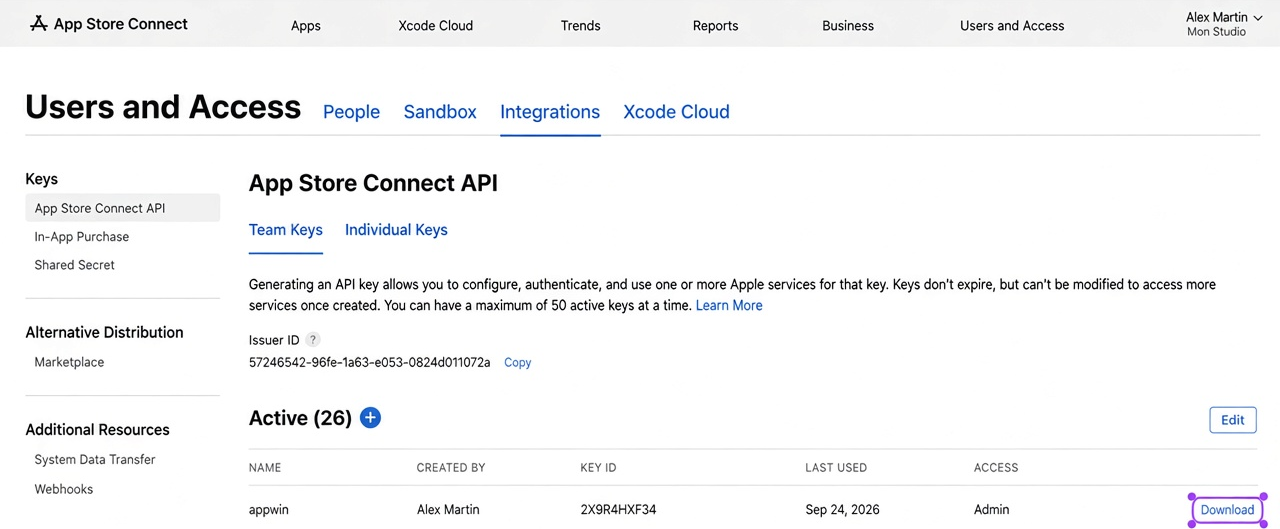
The
.p8downloads only once. Apple does not regenerate it. Lost the file? Revoke the key and create another. - 4
Import it in Appwin
Use Import a file: Appwin reads the
.p8and often derives the Key ID from the file name.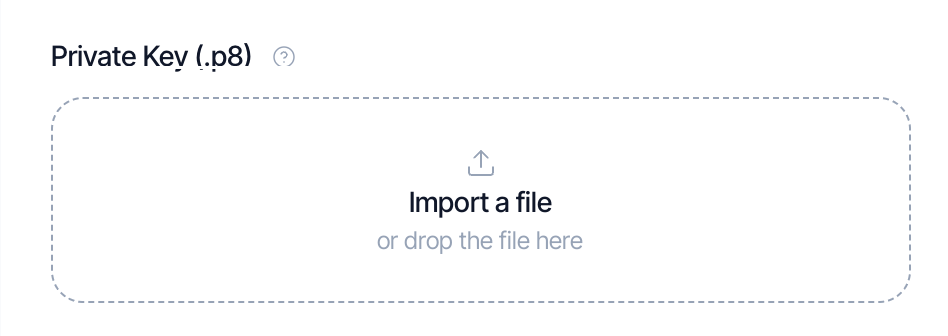
2. Collect the key identifiers
Still on the API Keys page. The private key is the contents of the .p8
already imported in step 1 (BEGIN / END lines included).
- 1
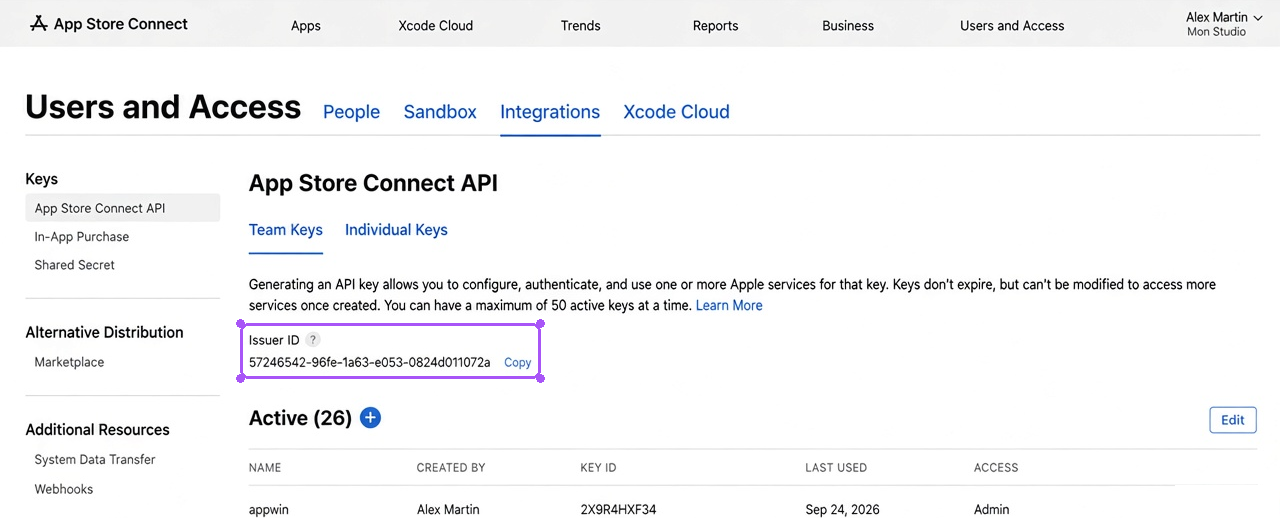
Issuer ID
UUID shown above the keys table. Same for every key on the account; it appears only after the first key is created. It tells Apple which App Store Connect account is calling.
- 2
Key ID
Table column (or the
AuthKey_XXXXXXXXXX.p8file name fragment). Specific to this key. If you imported the file in step 1, Appwin often derives it for you.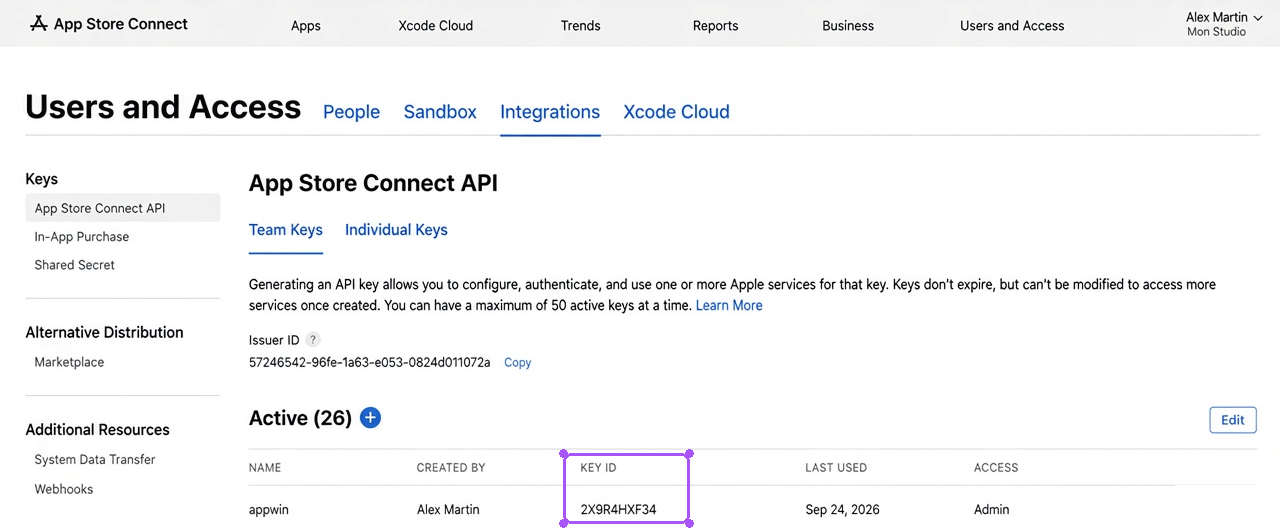
3. Identify your app
These values tie the key to your app, not the account in general.
- 1
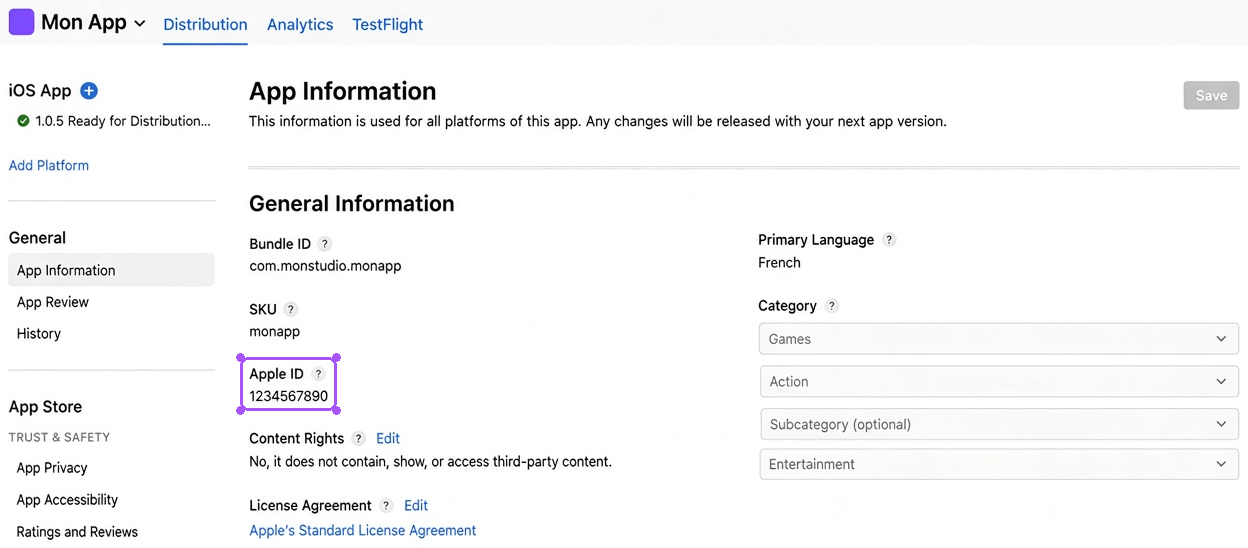
App ID (Apple ID)
In Apps → your app → General → App Information, the "Apple ID" field (10 digits). It is also the number in the
/apps/1234567890/URL.Do not confuse it with the Appwin App ID (the SDK one): same name, two different notions.
- 2
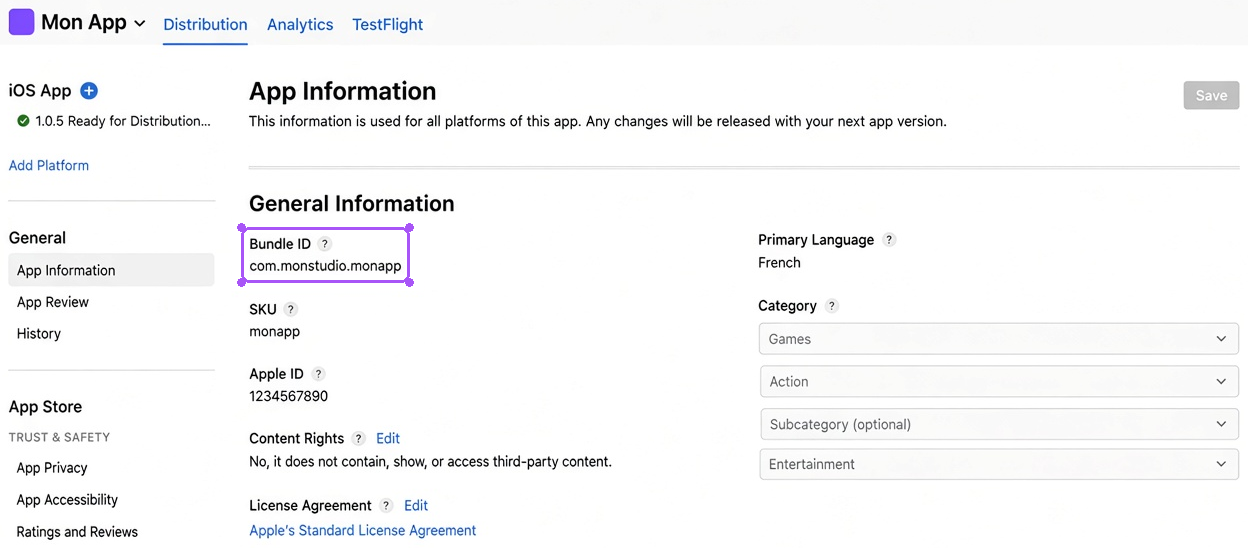
Bundle ID
Still in App Information: the Bundle ID. Same value as Bundle Identifier in Xcode. Optional for Appwin, useful to cross-check with other integrations.
- 3
Vendor Number (sales)
In Payments and Financial Reports, top left (8 digits). Only needed for sales reports; without it, metadata and reviews still work.

4. Enter them in Appwin
| Field | Value |
|---|---|
| App ID | 1234567890 |
| Bundle ID | com.yourstudio.yourapp (optional) |
| Issuer ID | aaaaaaaa-bbbb-cccc-dddd-eeeeeeeeeeee |
| Key ID | XXXXXXXXXX |
| Private key | Contents of the .p8 |
| Vendor Number | 87654321 (for sales, optional) |
What it unlocks
| Data | Minimal role |
|---|---|
| Metadata, screenshots, keywords | Developer |
| Reviews and ratings | Developer |
| Sales and revenue reports | Finance |
Security
Integration keys are encrypted at rest in the database. They are never returned in clear text to the dashboard: once saved, a key shows masked and can only be replaced.
If you suspect a leak, revoke the key from App Store Connect - revocation is immediate on Apple's side, regardless of what is stored at Appwin.
Troubleshooting
| Symptom | Likely cause |
|---|---|
| "Authentication failed" | Wrong Issuer ID or Key ID |
| "Invalid private key" | Truncated .p8: BEGIN/END lines must be included |
| Empty reviews | Your app has no reviews yet on the markets queried |
| Empty sales | Missing Vendor Number, or a role without Finance permission |
| 403 error | The key's role does not cover the requested data |
Next
- Google Play Console - the Android side
- ASO - listing, reviews, keywords, competitors
- Finance - sales reports